
How to transfer ownership of your n8n instance to another e-mail
Overview
This article explains how the n8n owner can change their sign-in email from within the instance and what to do if you encounter conflicts.
Change your sign-in email
Open your n8n instance and click the settings button (bottom-left corner).
Go to Settings > Personal.
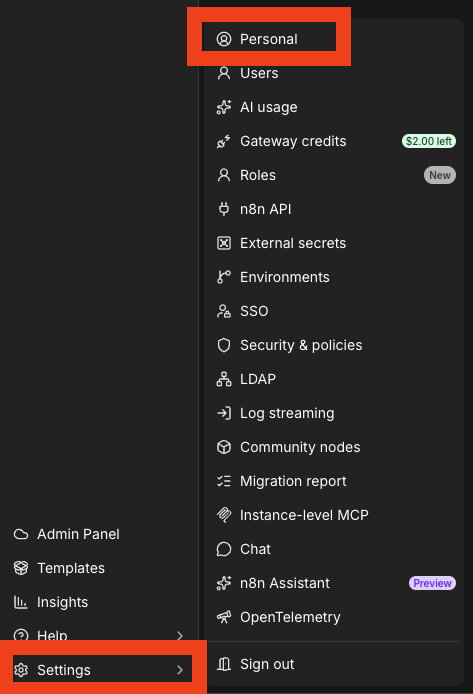
Edit the
Emailfield to the new address and click Save.Confirm your account password.
Once your password is entered, a verification email will be sent to your current email address (not the email you are changing to) from hey@mail.n8n.cloud. Locate this email and click "Change the email".
This link will only be valid for 20 minutes.
In the new page that opens, select to "Confirm email change".
Once the email has been changed, you will need to sign-in to your sessions again.
If the new email is already registered
The new email must not be the owner of another n8n cloud account.
If it is, you could delete the other instance or change the ownership to another email with this process. Once changed, you can retry the change on the required instance.
The new email must not already be a member of this instance.
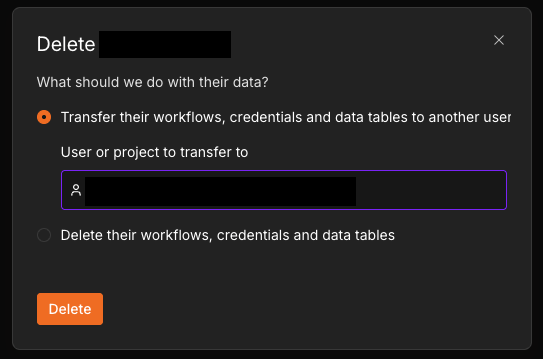
If this is the case, consider deleting the existing user and transfer their workflows to the current owner email before making the change. If you are unsure about this process, please reach out to support and we can walk you through it.
When you need human assistance
If you cannot change the email through the user interface, contact support and request escalation to a human agent.
If you no longer have access to the current email address, and therefor can't confirm the change.
Be prepared to verify ownership - support may request confirmation to proceed.
Troubleshooting checklist
Confirm you are logged into the correct workspace and using the workspace menu at the bottom-left.
Verify your role is Owner or contact your administrator for role changes.
Ensure the new email isn’t already in use by another account.
Contact support if you need ownership transfer assistance.
For further help, open a support request and ask to speak with a human agent for ownership or sign-in email changes.